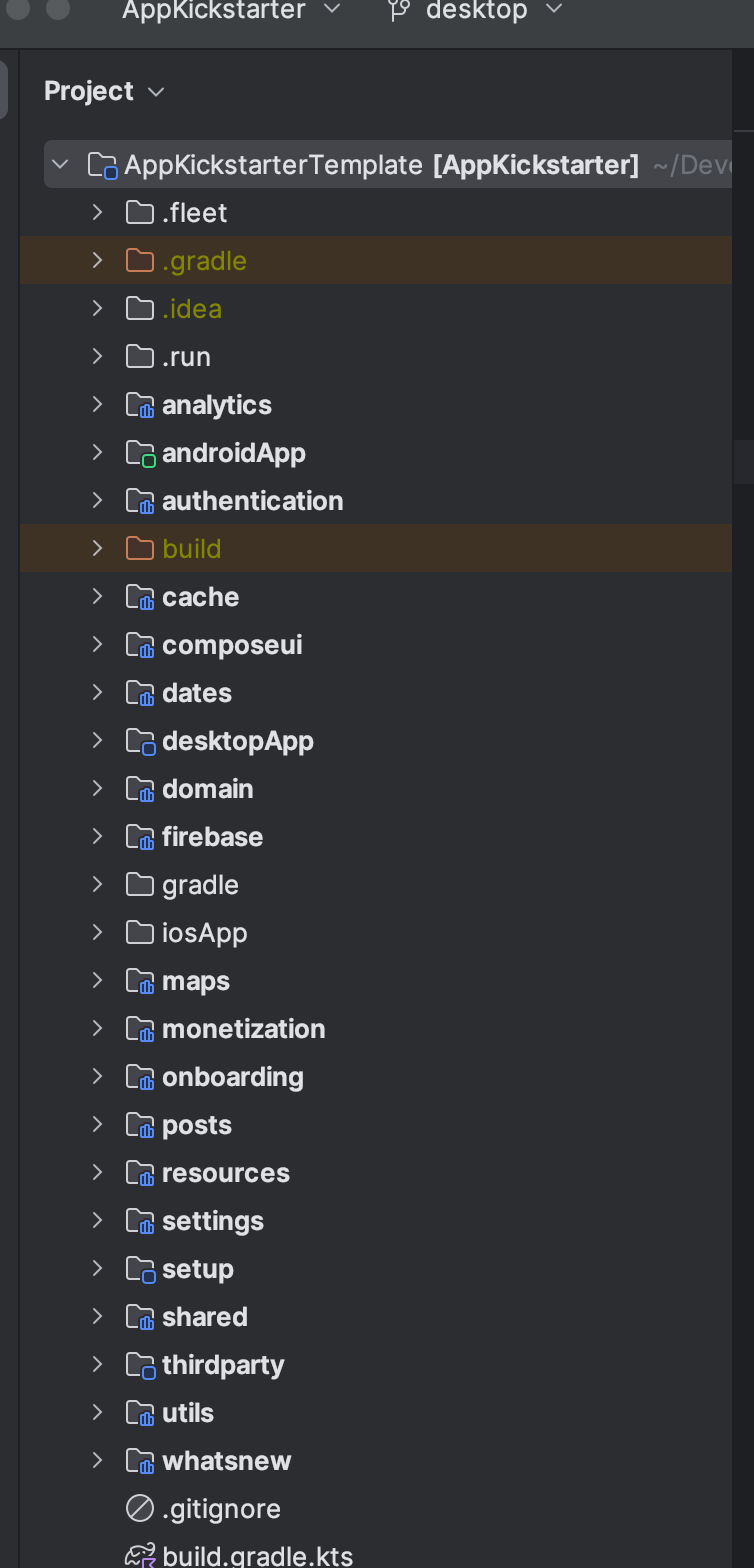
# Get started

Welcome to AppKickstarter!

AppKickstarter is your premier solution for swiftly creating Minimum Viable Products (MVPs) on Android and iOS platforms.&#x20;

Our mission is to expedite your mobile app development journey. We offer a meticulously organized project structure, essential app functionalities, and flawless integration with Firebase backend services.&#x20;

With AppKickstarter, your focus remains on transforming your unique app vision into reality, while we manage the foundational aspects.&#x20;

### Create a new project from the template

* After purchasing AppKickstarter from Lemon Squeezie, you'll gain access to our GitHub repository. Go to the [template page](https://github.com/AppKickstarter/AppKickstarterTemplate) and click on *Use this template*.

<figure><img src="https://955745581-files.gitbook.io/~/files/v0/b/gitbook-x-prod.appspot.com/o/spaces%2F5zo7QvF2Wko9f29upL6y%2Fuploads%2Fplx08Rx08Na6TB0cNcwv%2FCleanShot%202024-02-08%20at%2021.28.18%402x.png?alt=media&amp;token=b401f913-ce54-400d-9006-cf95163dccbe" alt=""><figcaption></figcaption></figure>

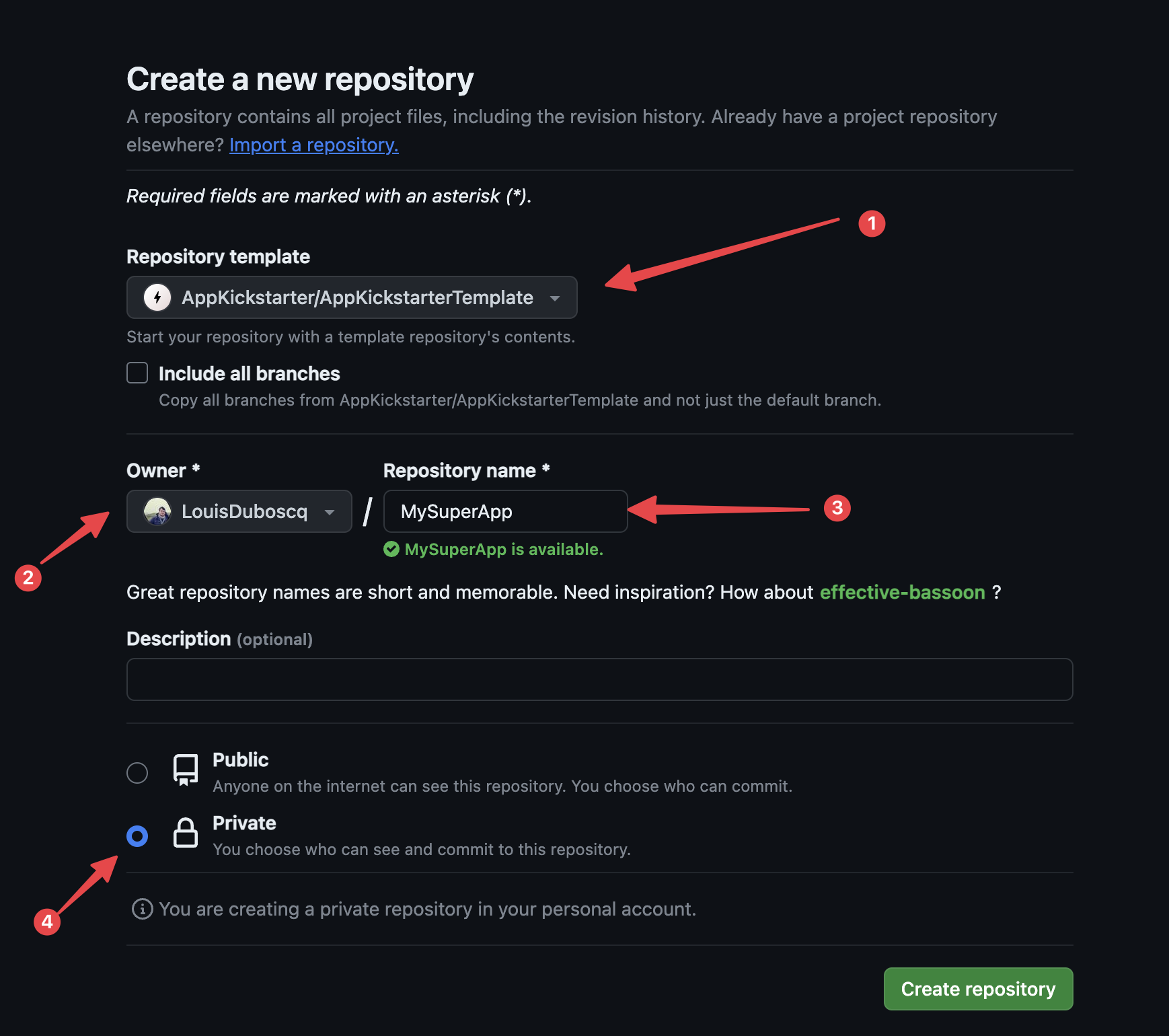
* Select “Create a new repository” and you should see something like this:

<figure><img src="https://955745581-files.gitbook.io/~/files/v0/b/gitbook-x-prod.appspot.com/o/spaces%2F5zo7QvF2Wko9f29upL6y%2Fuploads%2Flnn2OK8GZrk0xShLs68e%2FCleanShot%202024-02-08%20at%2021.30.54%402x.png?alt=media&amp;token=90888596-9ef5-4093-8c2e-27cb14f0032f" alt=""><figcaption></figcaption></figure>

* In “Repository template” choose “AppKickstarter/AppKickstarterTemplate.”
* Assign yourself as the owner
* Set your repository name
* Ensure it’s private, and click “Create repository.”

**Clone and Set Up Your Repository:**

* In Android Studio, choose “Get from VCS” and paste the SSH address from GitHub.
* Click “Clone.”

#### Setup Android

* Change the Android `applicationId` in androidApp/build.gradle
* Change `rootProject.name`in settings.gradle.
* Change your app's name in shared/src/androidMain/values/strings.xml

#### Setup iOS

* Open XCode : Make sure to open the iOS project opening xcworkspace file in XCode&#x20;
* Change Display Name&#x20;
* Change Bundle Identifier

1. **Configuring Environment Variables**

AppKickstarter ensures the security of your project by providing a dedicated file (`local.properties`) for API keys and secrets. This file is excluded from your GitHub repository, safeguarding your sensitive data. Simply populate your `local.properties` file with the necessary data to start your secure and streamlined development with AppKickstarter.

* Duplicate the values in local.properties.example inside your own local.properties
* Fill the signing configuration for the Android app:&#x20;

```
RELEASE_STORE_FILE=
RELEASE_STORE_PASSWORD=
RELEASE_KEY_ALIAS=
RELEASE_KEY_PASSWORD=
```

* Optional to start: AppKickstarter supports integration with multiple APIs to enhance your app’s functionality. RevenueCat, Google auth, Google map, PostHog, Sentry, AdMob can be effortlessly managed by specifying your API keys:&#x20;

```
# Google Map
google_map_api_key=

# AI Proxy
mobile_ai_api_hmac_secret_key=
mobile_ai_url=

# Google Sign in
google_sign_in_web_client_id=

# RevenueCat
revenuecat_api_key_android=
revenuecat_api_key_ios=

# AdMob Android
admob_app_id_android=
admob_rewarded_ad_id_android=

# AdMob iOS
admob_app_id_ios=
admob_rewarded_ad_id_ios=

# PostHog
posthog_api_key=
posthog_host=

# Sentry
sentry_dsn=
```

{% hint style="info" %}
Congratulations on gaining access to the AppKickstarter GitHub project! Along with this, you should have received an invitation to our dedicated Slack channel. This exclusive space is designed to provide you with the latest information, resources, and personalized support for your KMP apps. In case you haven't received your Slack invite, or if you have any other inquiries, please don't hesitate to reach out to our support team at <hey@appkickstarter.com>. I am here to ensure your journey with AppKickstarter is seamless and successful!
{% endhint %}

### **Integrate with Firebase:**

* On your Firebase Dashboard, create and name your new mobile application project. For better integration you must name your app ${your package}.android and your iOS app ${your package}.ios.
* Add an Android app, input the package name and download the `google-services.json` file.
* Place the `google-services.json` file into your Android app module in Android Studio.
* For iOS, add the `Google-service-Info.plist` via Xcode.

{% hint style="info" %}
Make sure to open the iOS project opening xcworkspace file in XCode&#x20;
{% endhint %}

{% hint style="info" %}
Do it via XCode else you'll have an error at runtime (firebase initialization failed because plist will not be found)&#x20;
{% endhint %}

{% hint style="info" %}
On XCode, you must make sure that "Copy items if needed" is checked. It is not always there by default.
{% endhint %}

* Enable on your Firebase application what you need : authentication, email/password login, google login, firestore, firebase storage
* Configure Firebase Authentication Rules such as:

```
// Allow read/write access on all documents to any user signed in to the application
service cloud.firestore {
  match /databases/{database}/documents {
    match /{document=**} {
      allow read, write: if request.auth != null;
    }
  }
}
```

* Set the Firebase authentication rules to allow read/write access to authenticated users.

### **Synchronize and launch your app:**

* Synchronize Gradle files.
* At this point the core of the app is setup. You need to [setup third parties](/get-started/initialize-third-parties) now.

### **Need Assistance?**&#x20;

If any issues arise during the setup, contact me on Slack or at <hey@appkickstarter.com> for personalized assistance. I am dedicated to helping you build exceptional apps!<br>


# Initialize third parties

AppKickstarter comes with third parties integration to ship faster. Here you'll find how to setup the integrations or how to adapt if you don't want these integrations.

### AdMob

If you want to support AdMob in your application you need to fill these infos In `local.properties` file :

```
# AdMob
admob_app_id_android=
admob_rewarded_ad_id_android=

admob_app_id_ios=
admob_rewarded_ad_id_ios=
```

You need to go on your AdMob account and create two applications: one for Android and one for iOS. Then create rewarded ads for both projects. Use these app ids and rewarded ads ids in `local.properties`.

#### Remove AdMob support

#### If you don't want to support AdMob you have to remove this line in the AndroidManifest.xml file:&#x20;

```
<meta-data 
android:name="com.google.android.gms.ads.APPLICATION_ID" 
android:value="${admobAppId}" />
```

Remove dependency in shared module (build.gradle file)

```
api(libs.play.services.ads)
```

Remove this line on AppInitializer#initialize and all code related to AdMob

```
initAdMob()
```

### Google Map

If you want to support Google Map fill the api key else just ignore.

```
# Google Map
google_map_api_key=
```

### RevenueCat

Fill your api keys in local.properties

```
# RevenueCat
revenuecat_api_key_android=
revenuecat_api_key_ios=
```

If you don't want to setup RevenueCat simply do not fill the api keys in this file and just don't call the paywall and RevenueCat apis, this should be working.

### Sentry

If you want to support Sentry fill the api key else just ignore.

```
# Sentry
sentry_dsn=
```

### PostHog

To setup PostHog you just need to add the host and api key after you created the project on PostHog.

```
# PostHog
posthog_api_key=
posthog_host=
```

### Google SignIn

To support Google login fill the web client id. You can find this value after you enabled Firebase Auth + Google auth:

<figure><img src="https://955745581-files.gitbook.io/~/files/v0/b/gitbook-x-prod.appspot.com/o/spaces%2F5zo7QvF2Wko9f29upL6y%2Fuploads%2FCUjARt7YJB1d8dpAnfdl%2FCleanShot%202024-04-28%20at%2018.25.14%402x.png?alt=media&amp;token=658c78c8-caef-4157-9428-d99ebd8237e5" alt="" width="563"><figcaption></figcaption></figure>

```
# Google Sign in
google_sign_in_web_client_id=
```

### AppKickstarter AI Backend Proxy

If you have the AI plan with KMP client that connects to the AI backend proxy you can fill these infos:

```
# AI Proxy
mobile_ai_api_hmac_secret_key=
mobile_ai_url=
```

Learn more [here](/features/secured-ai-backend-proxy) about the AI backend proxy and how AppKickstarter secures your API keys.


# Project organization

Understand here in minutes how the project works and is organized.

### Shared Module

The majority of  the application is written in shared module. AppKickstarter is a Kotlin Multiplatform project and follows the standard organization with commonMain folder where all shared code can be found, androidMain folder where android code only can be found and iOSMain folder where iOS only code is written:

<figure><img src="https://955745581-files.gitbook.io/~/files/v0/b/gitbook-x-prod.appspot.com/o/spaces%2F5zo7QvF2Wko9f29upL6y%2Fuploads%2FHqDLa3uRUOEwmFF0b14P%2FCleanShot%202024-04-27%20at%2010.15.03%402x.png?alt=media&amp;token=5ae7c930-c660-484e-b41d-ca57f81d3bca" alt="" width="563"><figcaption><p>Shared Module</p></figcaption></figure>

Also you may notice:&#x20;

* moko-resources folder where you can find images, localizations, fonts and colors:&#x20;

<figure><img src="https://955745581-files.gitbook.io/~/files/v0/b/gitbook-x-prod.appspot.com/o/spaces%2F5zo7QvF2Wko9f29upL6y%2Fuploads%2Fe5rPC3BaszIZft91K44s%2FCleanShot%202024-04-27%20at%2010.19.18%402x.png?alt=media&amp;token=b0d09ac9-8d0c-433d-890c-725f1082f3cb" alt="" width="563"><figcaption><p>Moko-Resources folder</p></figcaption></figure>

* sqldelight folder where there are database tables and queries + migrations files if there are any migration:

<figure><img src="https://955745581-files.gitbook.io/~/files/v0/b/gitbook-x-prod.appspot.com/o/spaces%2F5zo7QvF2Wko9f29upL6y%2Fuploads%2FPjkJpqAnxFWrWSLzW6oo%2FCleanShot%202024-04-27%20at%2010.20.55%402x.png?alt=media&amp;token=cddf81cb-a880-4bf2-aa1e-a0dbc69b2063" alt="" width="563"><figcaption><p>SqlDelight folder with database tables, queries and migration files</p></figcaption></figure>

### Android application

<figure><img src="https://955745581-files.gitbook.io/~/files/v0/b/gitbook-x-prod.appspot.com/o/spaces%2F5zo7QvF2Wko9f29upL6y%2Fuploads%2FaXI6COsGkNv9gGnjiD3b%2FCleanShot%202024-04-27%20at%2011.24.07%402x.png?alt=media&amp;token=6748af7c-d17d-4686-931f-2dc7e4f53339" alt="" width="563"><figcaption><p>Android Application in a Kotlin Multiplatform Project</p></figcaption></figure>

In the Android project you can find:&#x20;

* Activity
* Application
* res folder with app icon and app theme (just a fix for specific android phones like Xiaomi, the theme is mainly managed in shared code. Learn more about theme [here](/features/theme)).
* build.gradle file
* google-services.json file&#x20;

### iOS application


# Application initialization

At startup AppKickstarter init in this order in AppInitializer#initialize :&#x20;

* [Sentry](/features/application-monitoring)&#x20;
* [Logger](/features/logger)
* [Koin](/tech-things/dependency-injection)
* [PostHog](/features/analytics)
* AdMob
* [Firebase](/features/firebase-support)
* [RevenueCat](/features/monetization)
* [Google Auth](/features/authentication)
* [FCM](/features/notifications)


# Multi modules Architecture

AppKickstarter adopts Clean Architecture for independent, testable, and adaptable core logic, alongside Separation of Concerns, ensuring a modular, organized, and efficient codebase.

AppKickstarter has a multi-module Gradle structure, embracing Clean Architecture and Separation of Concerns. This structure is aimed at enhancing maintainability and promoting a robust development framework. The codebase is divided into distinct modules, each serving a specific function, adhering to SOLID principles, and ensuring a clear separation of concerns:

<div align="center"><figure><img src="https://955745581-files.gitbook.io/~/files/v0/b/gitbook-x-prod.appspot.com/o/spaces%2F5zo7QvF2Wko9f29upL6y%2Fuploads%2FvnrSHYa7sCAJKJtwewWC%2Fimage.png?alt=media&amp;token=88e01c0d-cec3-4f2d-b88c-f6db5ee7e2d5" alt="AppKickstarter modules architecture" width="188"><figcaption><p>AppKickstarter modules architecture</p></figcaption></figure></div>

* **Umbrella Shared Module:** Acts as the central entry point for the app.
* **Shared Module:** Provides common utilities and foundational components.
* **Domain Module:** Contains the business logic and use cases, crucial to the Clean Architecture model.
* **ComposeUI Module:** Focuses on UI development with Compose UI, housing all UI components.
* **Firebase Module:** Centralizes Firebase services, managing database operations and more.
* **Auth Module:** Oversees user authentication, ensuring secure access control.
* **Settings Module:** Offers a comprehensive interface for settings and preferences management.
* **Resources Module:** Stores all app resources, ensuring centralized management of strings, themes, and fonts.
* **Onboarding Module:** Aids new users in familiarizing themselves with the app's functionalities.
* **Maps Module:** Manages all map-related features, including permissions and location services.
* **Monetization Module:** Integrates Revenue Cat for subscriptions and in-app purchases, along with pre-built paywalls.
* **Dates Module:** Specializes in date and time operations, promoting consistency in managing temporal data.
* **WhatsNew Module:** Handles the presentation and management of updates and new features.


# Dependency injection

There are 2 main packages in AppKickstarter. \
One is template with the base of the template and one is app.&#x20;

In app there is a appModule.kt file where there is a demo with a simple app that creates posts and list them on a paginated list. The screen models, datasources and use cases are defined in this appModule . You would want to override this, clear all the appModule and create your own unique application.&#x20;

```
val appModule = module {
    factoryOf(::AddPostScreenModel)
    factoryOf(::PostsListScreenModel) 
    singleOf(::AddPost)
    singleOf(::PostsFirestore)
    singleOf(::SavePostPicture)
}

```


# Library management


# Secrets and Build Config

Understand how store secrets in local.properties and share the secrets in all the platforms (Android, iOS, Web, Desktop)

AppKickstarter leverages [BuildKonfig](https://github.com/yshrsmz/BuildKonfig) to store secrets and dispatch them in all platforms.

For example we have in local.properties this secret:&#x20;

```
# Google Sign in
google_sign_in_web_client_id=
```

In Shared module (build.gradle file) we get the local.properties secrets and create usable constants:&#x20;

```
buildkonfig {
    packageName = "com.appkickstarter.shared"

    val props = Properties()

    try {
        props.load(file("../local.properties").inputStream())
    } catch (e: Exception) {
        // keys are private and can not be committed to git
    }

    defaultConfigs {
        buildConfigField(
            STRING,
            "GOOGLE_SIGN_IN_WEB_CLIENT_ID",
            props["google_sign_in_web_client_id"]?.toString() ?: ""
        )
    }
}
```

This way we can use in Kotlin code (multiplatform) :&#x20;

```
private fun initGoogleAuth() {
    val credentials = GoogleAuthCredentials(serverId = BuildKonfig.GOOGLE_SIGN_IN_WEB_CLIENT_ID)
    ...
}
```


# Backend as an implementation detail

AppKickstarter is designed with a high level of abstraction for core functionalities such as Authentication, Remote Data Storage, and Remote Document Storage. This architectural choice ensures flexibility, allowing for easy substitution of Firebase or any other backend services. This section guides you through customizing the endpoints for Authentication, Storage, and Database services by leveraging the power of dependency injection with Koin.

### Create a Koin module

To begin customizing your backend services, create a Koin module that will hold your implementations:

```
val customRemoteModule = module {
    // your implementations, see below
}
```

### Storage

To customize storage solutions, implement the `IRemoteFileSystem` interface:

<pre><code><strong>interface IRemoteFileSystem {
</strong><strong>    suspend fun putFileAt(localFile: LocalFile, location: String): FileUrl
</strong><strong>}
</strong></code></pre>

Then, register your custom storage implementation in the Koin module:

```
singleOf(::CustomRemoteFileSystemImpl) bind IRemoteFileSystem::class
```

### Database

For custom database interactions, implement the `IUserRemoteDB` interface:

```
interface IUserRemoteDB { 
    suspend fun getUserInfos(userId: String): User? 
    suspend fun postUserInfos(user: User) 
}
```

And add your implementation to the Koin module for dependency injection:

```
singleOf(::CustomUserRemoteImpl) bind IUserRemoteDB::class
```

#### Posts Management

AppKickstarter includes default data manipulation examples, such as creating user posts with text, date, and images, and displaying them in a feed. To integrate a custom solution for posts storage:

Implement the `IPostsRemoteDB` interface:

```
interface IPostsRemoteDB { 
    suspend fun uploadPost(post: Post): String 
    suspend fun getAllPosts(): List 
    suspend fun deletePost(id: String)
}
```

Register your implementation in the Koin module:

```
singleOf(::CustomPostsRemoteImpl) bind IPostsRemoteDB::class
```

### Authentication

To customize authentication mechanisms, implement the `KickstarterAuth` interface:

```
interface KickstarterAuth {
    suspend fun signout()
    fun getCurrentUser(): CurrentUser?
    fun observeAuthStateChanged(): Flow<CurrentUser?>
    suspend fun observeSessionStatus(): Flow<SessionStatus>
    suspend fun signInAnonymously(): CurrentUser?
    suspend fun resetPassword(email: String)
    suspend fun createUserWithEmailAndPassword(email: String, password: String): CurrentUser?
    suspend fun signInWithEmailAndPassword(email: String, password: String): CurrentUser?
}
```

Finally, integrate your custom authentication service into the Koin module:

```
singleOf(::CustomRemoteAuth) bind KickstarterAuth::class
```

### Wrap it up

To finalize the customization of your backend services in AppKickstarter, ensure your `customRemoteModule` is defined as follows:

```
val customRemoteModule = module {
    singleOf(::CustomemoteFileSystemImpl) bind IRemoteFileSystem::class
    singleOf(::CustomUserRemoteImpl) bind IUserRemoteDB::class
    singleOf(::CustomPostsRemoteImpl) bind IPostsRemoteDB::class
    singleOf(::CustomRemoteAuth) bind KickstarterAuth::class
}
```

Navigate to `shared/commonMain/sharedModule/initKoin`, and make the following adjustments:

1. Remove the `firebaseModule`: This step is crucial as it disconnects the default Firebase implementations from your app's dependency graph.
2. Add `customRemoteModule`: By adding your custom module, you effectively replace the default services with your tailored implementations.

By completing these steps, you have successfully set up custom endpoints for Authentication, Storage, and Database services in AppKickstarter. This approach ensures that the core functionalities of your app are not tightly coupled with Firebase or any specific backend service.&#x20;


# Add a login page


# Add a screen with tab bars


# Add a settings screen

Display a settings screen for updating profile name, profile picture, knowing user subscription state, see notifications, manage theme, etc)


# Display an In-App Changelog for a new published version

In-App Changelog is a great way to engage your users. Learn here how to display the In-App Changelog with a new published version

### In-App Changelog content

In `LocalGetWhatsNewRepository` find a `whatsNewFor` function that returns a list of `FeatureItemData`.

A `FeatureItemData` is just a data class with&#x20;

* an image vector
* an icon tint color
* an icon background color
* a title
* a description

This way in whatsNewFor you can do this:&#x20;

```
return when (build) {
    "3" -> changelog3
    "4" -> changelog4 
    etc
}
```

The title and description can be localized like :&#x20;

```
FeatureItemData(
    imageVector = Icons.Rounded.Collections,
    iconTint = Color(0XFF161415),
    iconBackgroundColor = Color(0xFFb4a13e),
    title = SharedRes.strings.collection_feature,
    text = SharedRes.strings.collection_feature_description
)
```

Learn more about localization [here](/features/translations).

#### Get In-App Changelog from server

The function `whatsNewFor` is a suspend function: this means you can easily plugs a connexion to a server to fetch the in-app changelog. Example:&#x20;

```
class WhatsNewRepository(inAppChangelogApi: InAppChangelogApi) {

    suspend fun whatsNewFor(build: String): List<FeatureItemData> {
        return inAppChangelogApi.get(build)
    }
}
```

### Update the latest version seen

```
UpdatesLatestWhatsNewSeen
```


# Update localizations


# Update theme

### Using Custom Fonts in KMP (Compose Multiplatform)

Place your new font files in the appropriate `resources` module in commonMain/resources/MR/fonts directory within your project.&#x20;

For example, if you're using the Inter font family, you might have various font weights (e.g., Regular, Medium, Bold) stored as `.ttf` files in the `resources/fonts` directory.

<figure><img src="https://955745581-files.gitbook.io/~/files/v0/b/gitbook-x-prod.appspot.com/o/spaces%2F5zo7QvF2Wko9f29upL6y%2Fuploads%2FwcwmifvJyZYUexoGfvgG%2FCleanShot%202024-02-08%20at%2016.09.50%402x.png?alt=media&amp;token=6e518269-28d3-4b52-a986-c944161945f9" alt="" width="356"><figcaption><p>Using Custom Fonts in KMP (Compose Multiplatform)</p></figcaption></figure>

#### Accessing Fonts with Resource Identifiers

Resource identifiers for fonts are automatically generated by the build system. To use a font in your custom typography, you access it through a `fontFamilyResource` function, specifying the path to the font resource. Here's an example of accessing the Inter Regular font:

```
val InterRegular: FontFamily = fontFamilyResource(SharedRes.fonts.Inter.regular)
```

This line of code creates a `FontFamily` instance for the Inter Regular font by referencing its resource identifier, which is resolved at compile time through `SharedRes.fonts.Inter.regular`.

{% hint style="info" %}
You can specifically call the gradle task to generate all the resources identifiers via : ./gradle generateMRCommonMain
{% endhint %}

#### Defining Custom Typography

With your `FontFamily` instances ready, you can define a custom typography set that utilizes these fonts. The `CustomTypography` class allows you to specify text styles for different UI elements, such as labels, titles, and body text. Each style can be customized with attributes like `fontFamily`, `fontWeight`, `fontSize`, and more.

Here's how you can use the new Inter Regular font to all your labels in your app, update *customTypography* in the *KickstarterTheme* function:

```kotlin
val customTypography = CustomTypography(
    label = TextStyle(
        fontFamily = InterRegular,
        fontWeight = FontWeight.Medium,
        fontSize = 15.sp, 
    ),
    // Define other text styles as needed
)
```

### Change colors&#x20;

The fastest way to change the default colors is to update *AppKickstarterColors to your needs:*

```
val AppKickstarterColors: (Boolean) -> CustomColors = { useDarkTheme ->
    if (useDarkTheme) {
        CustomColors(
            background = Color(0XFF14121d),
            cardBackground = Color(0XFF241e34),
            sheetBackground = Color(0XFF432f5d),
            ...
        )
    }
}
```

But if you want to build a proper design system with all your own typography, colors, and dimensions then you will find more informations on [this page](/features/theme).


# Customize onboarding

### Customize existing pre-built pager

In OnboardingScreenContent you can change allSwipeDatas which is a list of OnboardingSwipeUniquePageData:

```
OnboardingSwipeUniquePageData(
    imageId = SharedRes.images.idea,
    titleText = SharedRes.strings.launch,
    subtitleText = SharedRes.strings.battle_tested_template,
    buttonText = SharedRes.strings.next,
)
```

Here you can customize image id which is an image resource, you can too customize texts with localizations.

### Custom onboarding

Onboarding by default in AppKickstarter is displayed just once at startup.&#x20;

If you want to have something different than the pager but keep the "only displayed at startup" feature, then you can just add your screens and flow such as :&#x20;

OnboardingScreen1 : navigator.push(OnboardingScreen2)

OnboardingScreen2: navigator.push(OnboardingScreen3)

...

OnboardingScreenLatest:&#x20;

```
val screenModel: OnboardingScreenModel = getScreenModel()
screenModel.setOnboardingSeen()
```


# Setup your paywall


# Setup your first notifications


# Format dates and save on database


# Using a Different Backend Instead of Firebase

Everything you need to know for this tutorial is located [here](/tech-things/backend-as-an-implementation-detail).


# Make an infinite list with pagination

Look at the example in PostsScreen and PostsScreenModel.&#x20;

PostsScreen loads and displays an infinite list of posts fetched with pagination.&#x20;

```
PostsLoaded(
    state.posts,
    fetchingNewPage = state.fetchingNewPage,
    newPage = { screenModel.newPage() }
)
```


# Onboarding

A well-designed onboarding process is crucial to maintain user engagement and motivation.

Learn on how to customize the onboarding experience in AppKickstarter by changing the text and resources, as well as mapping resource identifiers to the corresponding R.raw files in the Android app.

Our high-quality onboarding system effectively showcases your app’s key features and is customizable to meet your specific needs.

Our onboarding process in AppKickstarter is demonstrated in this onboarding GIF:

<div align="center"><img src="https://appkickstarter.com/images/onboarding.gif" alt="Onboarding screen in AppKickstarter"></div>

To personalize your onboarding experience, you can change the texts and resources. Simply modify the texts in the shared module’s onboarding file and add your Lottie files to the R.raw folder in the androidApp module. Finally, link each onboarding item to your R.raw files in the MainScreen on the androidApp module.

Remember, the most challenging part is finding the right texts and Lottie files for your onboarding.

### Defining Items <a href="#defining-items" id="defining-items"></a>

All the items in the onboarding screen are defined in a list in the shared module’s onboarding package. Here’s an example:

```
val onboardingItems = listOf(
    OnboardingSwipeUniquePageData( 
        titleText = "Launch ideas in no time",
        subtitleText = "with a battle-tested app template",
        buttonText = "Next",
        resId = "presence"
    ),
    OnboardingSwipeUniquePageData( 
        titleText = "Prioritize key features",
        subtitleText = "you don't need to start from scratch",
        buttonText = "Next",
        resId = "capture"
    ),
    OnboardingSwipeUniquePageData( 
        titleText = "Some crazy feature",
        subtitleText = "start now",
        buttonText = "Start",
        resId = "ai"
    ),
),
...
)
```

You can modify the title and subtitle text to meet your needs. Soon, you’ll also be able to localize the texts in AppKickstarter. For the resources, use an identifier such as “presence”, “capture”, or “ai”. This identifier maps to the appropriate resource for Android. We’ve chosen this method since Lottie is currently not supported on Compose for iOS. For iOS images are displayed.

### Calling the Screen <a href="#calling-the-screen" id="calling-the-screen"></a>

When you call the onboardingScreen in the androidApp module, provide the ID of the Lottie file (R.raw\.your\_file):

```
@Composable
fun OnboardingSwipeScreenAndroid(
    headerContent: @Composable (String) -> Unit,
    requestContinue: () -> Unit
)
```

You don’t have to modify the lambda parameter for requestContinue since AppKickstarter saves the value indicating that the user has already seen the onboarding in offline storage and won’t display it again. The last step is to map the resource identifier to your R.raw file (your Lottie file), like so:

```
val resId: Int = when (it) {
    "ai" -> R.raw.ai
    "presence" -> R.raw.social_network
    "schedule" -> R.raw.schedule
    else -> throw IllegalAccessException()
}
```


# Authentication

AppKickstarter simplifies authentication and user management using Firebase authentication, providing ready-to-use login and sign-up features.

AppKickstarter simplifies authentication and user management using Firebase authentication, providing a ready-to-use login and sign-up screen with various account management functions like logging in, signing up, resetting forgotten passwords (sent via email), and logging out (navigating back to the login page from the settings screen).

### Firebase authentication <a href="#firebase-authentication" id="firebase-authentication"></a>

Our app template offers a pre-built login and sign up screen with Firebase provider that is readily available for use. Simply display the composable and it will function seamlessly.

To make this works you need to enable Firebase authentication.

![Firebase Authentication in Kotlin multiplatform and Compose multiplatform with AppKickstarter](https://appkickstarter.com/images/docs/firebase_authentication_start.png)

### Email Password <a href="#email-password" id="email-password"></a>

After enabling Firebase Authentication if you want Email Password authentication, you just have to enable email/password authentication in Firebase.

![Firebase Authentication with Email password in Kotlin multiplatform and Compose multiplatform with AppKickstarter](https://appkickstarter.com/images/docs/firebase_email_password.png)

By default AppKickstarter provides ready to use authentication feature and screens with Email/Password and provides a reset password screen:

<div><img src="https://appkickstarter.com/images/docs/login.png" alt="Login screen in Kotlin Multiplatform and Compose Multiplatform" width="300"> <img src="https://appkickstarter.com/images/docs/signup.png" alt="Kotlin multiplatform Signup and Compose multiplatform Signup" width="300"> <img src="https://appkickstarter.com/images/docs/reset_password.png" alt="Kotlin multiplatform and Compose multiplatform reset password" width="300"></div>

### Google Sign in <a href="#google-sign-in" id="google-sign-in"></a>

Almost everything is ready in AppKickstarter to enable Google Sign in. You just need to follow these little configuration steps:

#### Firebase <a href="#firebase" id="firebase"></a>

Enable Google sign in in Firebase.

![Firebase Authentication with Google Sign In in Kotlin multiplatform and Compose multiplatform with AppKickstarter](https://appkickstarter.com/images/docs/firebase_google.png)

#### Android <a href="#android" id="android"></a>

Get the SHA1 with ./gradlew signingReport

Open the GCP console: <https://console.cloud.google.com/apis/credentials>

Update the the local.properties with the client id for Android.

```
google_server_client_id_for_android=yourclientid.apps.googleusercontent.com
```

#### iOS <a href="#ios" id="ios"></a>

Update the the local.properties with the client id for iOS.

```
google_server_client_id_for_ios=yourclientid.apps.googleusercontent.com
```

Then, in XCode, you have to add the reversed client id that you can find in your GoogleService-Info.plist. Select your app from the TARGETS section, then select the Info tab, and expand the URL Types section. Copy the value of that key, and paste it into the URL Schemes box on the configuration page. Leave the other fields untouched.

[![Google Sign in Kotlin multiplatform and Compose multiplatform with AppKickstarter](https://appkickstarter.com/images/docs/google_sign_in_ios_url_type.png)](https://firebase.google.com/docs/auth/ios/google-signin?hl=en#implement_google_sign-in)

For more informations [follow the guide here](https://firebase.google.com/docs/auth/ios/google-signin?hl=en#implement_google_sign-in).

### Custom Authentication without Firebase <a href="#custom-authentication-without-firebase" id="custom-authentication-without-firebase"></a>

You can customize the login and sign up logic while still utilizing the pre-built UI by implementing the following code in Kotlin:

```
var isSignUp by remember { mutableStateOf(false) }

LoginAndSignupScreen(
    isSignUp = isSignUp,
    createAccount = { email, password ->
        authScope.launch { createAccount(email, password) }
    },
    signInWith = { email, password ->
        authScope.launch { signInWith(email, password) }
    },
    resetPassword = { emailToReset -> 
        scope.launch {
            auth.resetPassword(emailToReset)
        }
    }
)
```

This allows you to manipulate the email and password according to your specific needs.


# Firebase support

Learn how to use the AppKickstarter Firebase in a multi-platform project for authentication and data transfer objects management.

This documentation outlines the usage of Firebase wrapper in a multi-platform project that supports both Android and iOS platforms. The Firebase module is defined using Koin and provides a set of authentication functions through the KickstarterAuth interface, which can be called by both platforms. Additionally, the KickstarterFirebaseFirestore class provides methods to perform CRUD operations on data transfer objects.

### Initialization <a href="#initialization" id="initialization"></a>

Firebase is set up as the default initialization in AppKickstarter. However, the project is designed to allow for the possibility of plugging in other backends like Supabase, Ktor, and others.

To initialize Firebase in the Android project, Koin is used along with the initFirebase function:

```
initFirebase(this)

initKoin {
    modules(
        listOf(
            module { androidContext(this@KickstarterApplication) },
            androidAppModule,
            firebaseModule
        )
    )
}
```

The firebaseModule is defined as:

```
val firebaseModule = module {
    single { Firebase.firestore }
    single { Firebase.auth }
    singleOf(::KickstarterFirebaseAuth).bind(KickstarterAuth::class)
    singleOf(::KickstarterFirebaseFirestore).bind(KickstarterRemoteDB::class)
}
```

### Authentication <a href="#authentication" id="authentication"></a>

The KickstarterAuth interface defines all the possible actions of the backend responsible for authentication. These actions include :

```
suspend fun signout()
suspend fun getCurrentUser(): CurrentUser?
suspend fun observeAuthStateChanged(): Flow<CurrentUser?>
suspend fun observeSessionStatus(): Flow<SessionStatus>
suspend fun signInAnonymously(): CurrentUser?
suspend fun resetPassword(email: String)
suspend fun updateProfile(displayName: String?, photoUrl: String?)

@Throws(
    BadEmailFormatException::class,
    PasswordInvalidException::class,
    EmptyOrNullValueException::class,
    EmailAlreadyUsedException::class,
    CancellationException::class
)
suspend fun createUserWithEmailAndPassword(email: String, password: String): CurrentUser?

@Throws(
    BadEmailFormatException::class,
    PasswordInvalidException::class,
    EmptyOrNullValueException::class,
    CancellationException::class
)
suspend fun signInWithEmailAndPassword(email: String, password: String): CurrentUser?
```

### Data transfer objects <a href="#data-transfer-objects" id="data-transfer-objects"></a>

The KickstarterFirebaseFirestore class provides methods to perform CRUD operations on data transfer objects. For example, the uploadPost(post: Post) function allows creating or updating a post. It uses the PostDto class to handle data transfer objects. The getAllPosts() function fetches all the posts from the Firestore database.

```
class KickstarterFirebaseFirestore(
    private val firestore: FirebaseFirestore,
    private val auth: KickstarterAuth,
) : KickstarterRemoteDB {

    override suspend fun uploadPost(post: Post): String {
        val postDto = post.toDto() 
        return if (postDto.remoteId == null) {
            create(postDto) 
        } else {
            update(postDto) 
        }
    }

    override suspend fun getAllPosts(): List<PostDto> {
        return getAll("posts")
            .map {
                it.data(strategy = PostDto.serializer()).toPost()
            }
    }
}
```


# Offline support

AppKickstarter offers convenient key-value storage and offline database solutions for mobile app development, with preconfigured dependencies and compatibility for Android and iOS.

Key-value storage

With AppKickstarter, you can easily store key-value data using the com.russhwolf.settings dependency. This feature is compatible with both Android and iOS and the base is already set up for your project.

### Offline database <a href="#offline-database" id="offline-database"></a>

AppKickstarter also provides an offline database using the sqldelight dependency, which works on both Android and iOS. The base is already configured for your project, so you can start using the database right away.

<br>


# Monetization

Learn things you can share with iOS that you usually do in the Android platform

AppKickstarter heavily relies on RevenueCat. It supports two mechanisms to display paywalls.&#x20;

* The new Paywalls feature of RevenueCat which allows developers to build offers and paywalls via the no code editor and avoid a new application publication.
* Fetching offerings and displaying Revenue Cat packages into a pre built Compose muliplatform Paywall.&#x20;

AppKickstarter’s billing management is powered by RevenueCat, which offers a streamlined solution for implementing and managing in-app purchases and subscriptions. RevenueCat provides a backend and wrapper that works with Apple’s StoreKit and Google Play Billing, eliminating the need for server maintenance and backend coding.

With AppKickstarter, you can display a pre-designed paywall screen that integrates RevenueCat’s features seamlessly. The paywall screen includes information on yearly, monthly, and weekly plans, as well as discounts for yearly plans. Users can click on the plans to access the native payment option modal provided by their device.

### Setup <a href="#setup" id="setup"></a>

To set up the paywall, simply create your offerings in RevenueCat, and AppKickstarter will display the current offering on the paywall screen. We recommend setting up one package for annual, monthly, and weekly payments, as well as a one-time payment for lifetime access.

### Why RevenueCat and what it is <a href="#why-revenuecat-and-what-it-is" id="why-revenuecat-and-what-it-is"></a>

We chose RevenueCat for paywall management due to its numerous advantages, including easy implementation and maintenance of the SDK, comprehensive documentation, a single interface for managing Android and iOS data, and an analytics dashboard with charts and useful data. RevenueCat also offers A/B testing and offerings management, allowing you to adjust pricing in the backend.

In RevenueCat’s terminology, products are individual SKUs that users purchase, entitlements represent levels of access or content that users are entitled to, and offerings are the selection of products offered to users on the paywall. With offerings, you can control which products are shown to users without requiring an app update, making it easier to change and experiment with your paywalls.

<br>


# Whats new feature

Every update is an opportunity to keep your users engaged in your project. People appreciate apps that are actively maintained and are more likely to pay for regularly updated products.

Showcase New Build Features and Fixes, Engage Your Users, and Convert Them into Paying Customers.

Every update is an opportunity to keep your users engaged in your project. People appreciate apps that are actively maintained and are more likely to pay for regularly updated products. That’s why we’ve introduced this feature – to showcase the new features and fixes with every build update while also providing an additional opportunity to introduce the paywall.

### Presenting the List <a href="#presenting-the-list" id="presenting-the-list"></a>

```
 // Define update details for build 10
private val updateBuild10 = listOf(
    FeatureItemData(
        imageVector = Icons.Rounded.Home,
        iconTint = Color.White,
        iconBackgroundColor = Color(0XFFd32727),
        title = "New feature 1",
        text = "We've introduced this exciting new feature. You'll find it amazing."
    ),
    // ... More features for this build
)

override suspend fun whatsNewFor(build: String): List<FeatureItemData> { 
    // Return the updates for the specified build
    return when (build) {
        "10" -> updateBuild10
        else -> emptyList()
    }
}
```

In the code above, the whatsNewFor function is called every time the app is launched after onboarding and the user logs in.

It is called with the build version as a string (version code not version name).

Simply using the when statement and returning the updateBuild10 variable in the “10” case will display the ‘What’s New’ screen.

### If You Don’t Want to Present Updates <a href="#if-you-dont-want-to-present-updates" id="if-you-dont-want-to-present-updates"></a>

You can simply return an empty list every time.

### Hiding the ‘What’s New’ Screen <a href="#hiding-the-whats-new-screen" id="hiding-the-whats-new-screen"></a>

The ‘What’s New’ screen can be hidden by clicking the close button at the top left or by clicking the continue button.

### Show the Paywall on Click the Continue Button <a href="#show-the-paywall-on-click-the-continue-button" id="show-the-paywall-on-click-the-continue-button"></a>

```
PrimaryButton("Continue") {
    screenModel.updatesVersionSeen()
    navigator.push(PaywallScreen)
}
```

The first line, updatesVersionSeen, updates the version seen to the latest (e.g., 10 in our example), and, through observability, the screen is hidden.

The second line, navigator.push(PaywallScreen), presents your paywall and offers an opportunity to convert users into paying customers.

<br>


# Navigation in AppKickstarter

Understand how navigation works in AppKickstarter

[AppKickstarter relies on Voyager](https://appkickstarter.com/blog/multiplatform-navigation-with-voyager) to navigate between screens on both Android and iOS.

### Navigation graph <a href="#navigation-graph" id="navigation-graph"></a>

By default when the app is freshly installed the basic navigation flow is :

* Onboarding
* Auth screens (Login/SignUp/Reset password)
* Home

<br>


# Theme

### Theme and Brightness

AppKickstarter is designed to enhance the user interface on mobile devices by utilizing two key values: theme and brightness.&#x20;

The theme refers to the current color palette in use, which can either be the default palette provided by the app or a palette selected by the user in their settings.&#x20;

Brightness, on the other hand, determines whether the UI is displayed in light, dark, or system mode. By default, the brightness is set to 'system', allowing the app to match the system's current brightness setting, but users have the option to customize this in their settings to either 'light' or 'dark' mode.

For example, imagine you support two color palettes in your application, Blue Chill and Medium Carmine:

<figure><img src="https://955745581-files.gitbook.io/~/files/v0/b/gitbook-x-prod.appspot.com/o/spaces%2F5zo7QvF2Wko9f29upL6y%2Fuploads%2FIVA2w8QIRmh9zTUxybRE%2FCleanShot%202024-02-08%20at%2014.27.01%402x.png?alt=media&amp;token=fa5e23f4-a057-48b3-ba88-49620ddb3ec5" alt=""><figcaption><p>Blue Chill Palette color</p></figcaption></figure>

```
val BlueChillColors = { useDarkTheme ->
    if (useDarkTheme) {
        CustomColors(
            background = blueChill950, 
            ...
        )
    } else {
        CustomColors(
            background = blueChill50, 
            ...
        )    
    }
}
```

<figure><img src="https://955745581-files.gitbook.io/~/files/v0/b/gitbook-x-prod.appspot.com/o/spaces%2F5zo7QvF2Wko9f29upL6y%2Fuploads%2FCb9ESlKcUNEMrBuKv5bM%2FCleanShot%202024-02-08%20at%2015.45.06%402x.png?alt=media&amp;token=1b10fa9a-6eee-421c-b1c9-0f265a661bd4" alt=""><figcaption><p>Medium Carmine Palette color</p></figcaption></figure>

```
val MediumCarmineColors = { useDarkTheme ->
    if (useDarkTheme) {
        CustomColors(
            background = mediumCarmine950, 
            ...
        )
    } else {
        CustomColors(
            background = mediumCarmine50, 
            ...
        )    
    }
}
```

In the *KickstarterTheme* function, you have to update to this:

```
val customColors = when (selectedTheme) {
    "BlueChill" -> BlueChillColors(useDarkTheme)
    "MediumCarmine" -> MediumCarmine(useDarkTheme)
    else -> throw IllegalStateException("$selectedTheme theme does not exist")
}
```

{% hint style="info" %}
`KickstarterTheme` is the cornerstone of AppKickstarter's approach to creating a fully customized design system. This component is responsible for generating the fonts, colors, and other essential design elements that define the look and feel of the app.&#x20;
{% endhint %}

### Fonts

Creating custom fonts within the `KickstarterTheme` involves leveraging the font resources stored in the `resources` module of your application. These resources are accessible through dynamically generated identifiers during the compilation process, ensuring that your app can efficiently load and use these fonts at runtime.

### Access Values

Accessing the values defined by `KickstarterTheme` is straightforward and allows for the application of consistent design principles throughout the app. The following are examples of how to access various design elements:

* **Colors**: `KickstarterTheme.colors.background` to access the background color.
* **Typography**: `KickstarterTheme.typography.title` for accessing the style of titles.
* **Elevation**: `KickstarterTheme.elevation.pressed` to get the elevation value for pressed UI elements.
* **Shapes**: `KickstarterTheme.shapes.badge` to define the shape of badges or similar elements.

These elements can be easily integrated into the app's UI components, ensuring that the design remains consistent across different sections of the app.

### Save Theme and Brightness

Saving the theme and brightness settings chosen by the user is crucial for providing a personalized app experience. AppKickstarter facilitates this by storing these preferences in `PreferenceLocalDataSource`. This ensures that the user's choices are preserved across app sessions, thereby maintaining the customized look and feel of the app according to the user's preferences.

### Default Values

When the app is first launched, or when no user preferences have been set, `PreferenceLocalDataSource` is initialized with default values for both the theme and brightness. This initialization process is essential for defining the app's basic visual identity and ensuring that there is a default user experience that is visually appealing and user-friendly. The default theme is typically a well-designed color palette that aligns with the app's branding, while the default brightness setting is 'system', allowing the app to adapt to the current system settings of the user's device.

In *cacheModule*:

```
PreferenceLocalDataSource(
    settings = get(),
    defaultThemeName = "shark",
    defaultThemeBrightnessName = "system"
)
```

To support only `light` or `dark` modes, change the `defaultThemeBrightnessName` from `"system"` to the desired setting.&#x20;

To change the app's color palette, simply update the `defaultThemeName` with the name of the desired color scheme.&#x20;

### Tutorial to update theme to your needs

{% content-ref url="/pages/gKHc85OkUA9OwyZfrp0z" %}
[Update theme](/tutorials/update-theme)
{% endcontent-ref %}


# UI Kit

AppKickstarter UI Kit is a versatile collection of interface components that deliver clean and simple designs across Android, iOS, and desktop platforms.

### Support iOS with your Android app codebase

Learn things you can share with iOS that you usually do in the Android platform

Use this UI Kit to craft stunning and user-friendly app interfaces. Our UI Kit follows the Atomic Design principles and is built on top of Material 3 to offer you the flexibility to use it as building blocks to create customized solutions. Powered by Jetbrain Compose, this UI Kit supports Android and desktop (macOS, Windows, Linux) platforms, providing a seamless experience across devices.

### Theming <a href="#theming" id="theming"></a>

#### Pre-built Theming <a href="#pre-built-theming" id="pre-built-theming"></a>

AppKickstarter comes with pre-built themes featuring ready-to-use color schemes, fonts, and in-app theming management. Our UI Kit provides effortless customization options, allowing users to switch between themes (colors, fonts) and adjust brightness settings (dark, light, or system colors) with ease.

![AppKickstarter theming](https://appkickstarter.com/images/theming.gif)

Customization

While AppKickstarter offers a range of pre-built themes, you can easily customize the palette colors to suit your unique preferences. Our UI Kit provides an effortless customization experience, allowing users to seamlessly modify the palette colors to their liking.

```
CustomColors(
    background = color1,
    textOnBackground = color2, 
    buttonBackground = color3,
    textOnButton = color4,
    ...
)
```

### Storybook organized by atoms, molecules, organisms and templates <a href="#storybook-organized-by-atoms-molecules-organisms-and-templates" id="storybook-organized-by-atoms-molecules-organisms-and-templates"></a>

AppKickstarter includes a storybook that simplifies the process of selecting the desired components. You can easily choose the components you need, thanks to the storybook that showcases all the available options.

<div align="center"><img src="https://appkickstarter.com/images/uikit-ios.gif" alt="Atoms &#x26; Molecules in AppKickstarter UIKit"></div>


# Dates management


# Platform specific

In some scenarios when you need to execute platform-specific logic directly from common code, you can use a `when` expression to determine the platform at runtime:

```
when (platform()) {
    AppPlatform.IOS -> TODO()
    AppPlatform.ANDROID -> TODO()
    AppPlatform.DESKTOP -> TODO()
}
```


# Offline cache

### File system

### Offline database

### Offline dictionary


# Translations

Learn here how to do translations in AppKickstarter.

<figure><img src="https://955745581-files.gitbook.io/~/files/v0/b/gitbook-x-prod.appspot.com/o/spaces%2F5zo7QvF2Wko9f29upL6y%2Fuploads%2Fe5rPC3BaszIZft91K44s%2FCleanShot%202024-04-27%20at%2010.19.18%402x.png?alt=media&amp;token=b0d09ac9-8d0c-433d-890c-725f1082f3cb" alt=""><figcaption><p>Moko resources folder</p></figcaption></figure>

AppKickstarter leverages [Moko resources](https://github.com/icerockdev/moko-resources) to manage translations.

In shared module, in commonMain, there is a moko-resources folder.

In this folder there are base localization, all the localizations you want (here fr), images and fonts.&#x20;

All the resources here are bundled in the target platform (Android, iOS, etc).

### Define XML key values

Base strings.xml:&#x20;

```
<resources>
    <string name="login">Login</string>
    <string name="signup">Create an account</string>
</resources>
```

French strings.xml:&#x20;

```
<resources>
    <string name="login">Se connecter</string>
    <string name="signup">Creer un compte</string>
</resources>
```

### Access in shared code or every where in the project

Use SharedRes.strings to access localizations:

```
Button(onClick = { login() } {
    Text(SharedRes.strings.login)
}
```


# Analytics


# User management

```
data class User(
    val uid: String,
    val name: String,
    val email: String,
    val picture: FileUrl?,
)
```

```
val saveProfilePicture = SaveProfilePicture(args) // args are injected thanks to Koin
saveProfilePicture(byteArray)
```

### Save Profile Picture

Imagine you want to create a ProfileScreen that save picture profile selected via gallery ou camera to the local file system and remote storage:&#x20;

```
class ProfileScreenModel(
    private val saveProfilePicture: SaveProfilePicture,
): ScreenModel {
    fun saveProfilePicture(byteArray) {
        this.saveProfilePicture(byteArray)
    }
}


```

SaveProfilePicture saves in local file system the image then tries to send it to the remote storage.&#x20;

### Control the remote storage

suspend fun putFileAt(localFile: LocalFile, location: String): FileUrl

###


# Logger

AppKickstarter uses an abstraction for logging infos, you can call these functions:

```
AppLogger.e(message, exception)
AppLogger.d(message)
AppLogger.i(message)
```

By default on debug AppLogger will display logs on console and on release it send error logs in Sentry.&#x20;

More infos on crash monitoring here/&#x20;


# Platform utilities

### Application Marketing

* Encourage users to rate your app without leaving it. This can boost your app's ratings and visibility in the app store:

```
inAppRating() 
```

* Direct users to your app's store page to leave a review or explore more details with:

```
fun openAppStore() 
```

* Share custom text content, perfect for spreading the word about your app on social media or messaging platforms:

```
fun shareText(text: String)
```

* Increase your app's reach by sharing it directly, which allows you to send a personalized message along with the app's store link

```
fun shareApp(applicationId: String, message: (link: String) -> String)
```

### Web

Direct users to a specific website or promotional page. This function opens the user's default browser to the specified URL:

```
fun openUrl(url: String)
```

### Haptic Feedback

Enhance the tactile experience of your app with Haptic Feedback:

```
val haptic = LocalHapticFeedback.current
PrimaryButton("Vibrate") { 
    haptic.performHapticFeedback(HapticFeedbackType.LongPress)
} 
```

### CollectAsState

Use this in shared code:

```
collectAsStateMultiplatform()
```

It takes into account `collectAsStateWithLifecycle` in Android.


# Maps and locations

AppKickstarter comes with a GoogleMap and MapKit implementation that you just have to use.

### Observe location

With *ObserveLocation* you can start user location tracker and get a Flow of GpsPosition

```
fun invoke(): Flow<GpsPosition>
suspend fun startTracking()
fun stopTracking()
```

You just have to call this:&#x20;

```
observeLocation.startTracking()
```

```
observeLocation().collect { latlng ->
    // your code
}
```

### Display location on a Map

MapView creates a GoogleMap on Android and a MapKit on iOS :&#x20;

```
val verticalScrollEnableState = remember { mutableStateOf(true) }
MapView(
    modifier = Modifier
        .padding(horizontal = 12.dp),
    gps = gpsPosition,
    title = "Author location",
    parentScrollEnableState = verticalScrollEnableState,
)
```


# Secured AI Backend Proxy

We prevent you from losing thousands of dollars by including a backend that securely handles your API key requests to the AI API.

### Publish Server (3 min setup)

1. Login on render.com with your Github account
2. Create a new Web Service

<figure><img src="https://955745581-files.gitbook.io/~/files/v0/b/gitbook-x-prod.appspot.com/o/spaces%2F5zo7QvF2Wko9f29upL6y%2Fuploads%2FkLq83pXVGbfKZUBNqIsS%2FCleanShot%202024-04-25%20at%2013.19.39%402x.png?alt=media&amp;token=08ad5e27-c70f-419a-b123-cac69fe9532f" alt=""><figcaption><p>Create a new Web Service in Render.com </p></figcaption></figure>

3. Download the code on <https://github.com/AppKickstarter/backend-ai>
4. In this repository you'll find a KMP ai client and a NodeJS backend server. Create a Github repository and push the node js part on it.&#x20;
5. Connect your new NodeJS repository to render and the web service you created before.&#x20;
6. On every push the render web service will be updated
7. Add your environement variables: HMAC\_SECRET\_KEY, OPENAI\_API\_KEY and REPLICATE\_API\_TOKEN

<figure><img src="https://955745581-files.gitbook.io/~/files/v0/b/gitbook-x-prod.appspot.com/o/spaces%2F5zo7QvF2Wko9f29upL6y%2Fuploads%2Fw9keKWnGS8sdy0KNvfEb%2FCleanShot%202024-04-25%20at%2013.24.00%402x.png?alt=media&amp;token=0ac1388a-5da7-464d-aa8a-9d36fd5c1210" alt=""><figcaption><p>Environment variables in Render.com</p></figcaption></figure>

### Use AI module in a KMP Project (Android, iOS, Desktop, Web) (3 min setup)

1. Download AI module on <https://github.com/AppKickstarter/AI>
2. Copy paste AI module in your project
3. Add module in settings.gradle:&#x20;

```
include(":ai")
```

4. Add dependency in your build.gradle:

```
kotlin {
    ...

    sourceSets {
        commonMain.dependencies { 
            implementation(projects.ai)
        }
    }
}
```

5. Add environement variables in local.properties : mobile\_ai\_api\_hmac\_secret\_key and mobile\_ai\_url.&#x20;

{% hint style="info" %}
mobile\_ai\_api\_hmac\_secret\_key should be the same the Render HMAC\_SECRET\_KEY and mobile\_ai\_url is the url given by render when you publish your web service.
{% endhint %}

6. Add BuildKonfig in your project:&#x20;

```
import com.codingfeline.buildkonfig.compiler.FieldSpec.Type.STRING

plugins {
    ...
    id("com.codingfeline.buildkonfig")
}

buildkonfig {
    packageName = "your.package.app"

    val props = Properties()

    try {
        props.load(file("../local.properties").inputStream())
    } catch (e: Exception) {
        // keys are private and can not be committed to git
    }

    defaultConfigs {
        buildConfigField(
            STRING,
            "MOBILE_AI_API_HMAC_SECRET_KEY",
            props["mobile_ai_api_hmac_secret_key"]?.toString() ?: ""
        )

        buildConfigField(
            STRING,
            "MOBILE_AI_URL",
            props["mobile_ai_url"]?.toString() ?: ""
        )
    }
}
```

6. Now you can call ChatGpt, Dall-e, Whisper, OpenAI Vision and more :&#x20;

Create the service :&#x20;

```
val aIService = AIService(
    BuildKonfig.MOBILE_AI_URL,
    BuildKonfig.MOBILE_AI_API_HMAC_SECRET_KEY,
)
```

Inject it in Koin:&#x20;

```
module {
    singleOf { 
        AIService(
            BuildKonfig.MOBILE_AI_URL,
            BuildKonfig.MOBILE_AI_API_HMAC_SECRET_KEY,
        )
    } 
}
```

Call ChatGpt:&#x20;

```
scope.launch {
    aiService
        .chatgpt(
            model = model, // support gpt3.5 turbo, gpt4, etc
            messages = listOf(
                Message(
                    role = "system",
                    content = "Marv is a factual chatbot that is also sarcastic."
                ),
                Message(
                    role = "user",
                    content = userContent
                ),
            )
        )
        .onFailure {
            result = "We found an error ${it.message}"
        }
        .onSuccess {
            result = it
        }
}
```

Call Dall-e 3

```
scope.launch {
    aiService
        .dallee(prompt) // only dall-e 3 for now but you can easily change it
        .onFailure { error = "We found an erorr ${it.message}" }
        .onSuccess { resultUrl = it.data.firstOrNull()?.url }
        .also { loading = false }
}
```

Call OpenAI Vision&#x20;

```
scope.launch {
    aiService
        .vision(
            prompt = prompt,
            url = url // image url to analyze
        )
        .onFailure {
            result = "We found an error ${it.message}"
        }
        .onSuccess {
            result = it
        }
}
```

### Add AI module in a iOS Swift only Project

{% hint style="info" %}
You can add the module in a iOS Swift only project the same way you add a KMP library to a iOS Swift only app. If you want more informations please ask at <hey@appkickstarter.com>
{% endhint %}

### Add AI module in a Flutter Project

{% hint style="info" %}
You can add the module in a Flutter project the same way you add a KMP library to a Flutter app. If you want more informations please ask at <hey@appkickstarter.com>
{% endhint %}


# Settings

AppKickstarter comes with a pre-built settings screen you can use easily. Find here what you can use in the settings screen by default.

### Monetization account status and Upgrade CTA

A default UI component shows what is the monetization status for the current user. It displays if the user is subscribed or not.&#x20;

If the user is not subscribed then there is a "unlock premium" CTA with a description you can customize.&#x20;

{% hint style="info" %}
Put in the description the unique features accessible only behind your paywall
{% endhint %}

If the user is subscribed the UI component displays the user is pro, what plan he selected and until when he's pro.

### Theme

The user is able to select the application theme. By default the theme is put on system but the user can choose light, dark or system.&#x20;

Learn more about theming [here](/features/theme).

### In-App rating

The settings screen displays a CTA to improve app rating. It calls the native in-app rating on both Android and iOS.

### Log out

By default the settings screen comes with a log out button that log out user from Firebase. By default AppKickstarter comes with an `observeSession` that changes the screen (replace all) after logout. But you can change this by changing the ~~observeSession~~ or doing a custom implementation on log out click.

Learn more about authentication, login and logout flows and observeSession [here](/features/authentication).

### App version

It displays the app version (version code + version number)

### User ids

It displays the firebase user id and the revenue cat user id.&#x20;


# Application monitoring

Find here all you need to know about application monitoring and Sentry + Napier use.

On debug Sentry is not initialized.&#x20;

On release Sentry is initialized in `AppInitializer#initialize` function.

### Initialization

The initialize function is based on `SENTRY_DSN` which is created via BuildKonfig. The secret `DSN` is retrived from the `local.properties` file in `build.gradle`.

Learn more about secrets and BuildKonfig [here](/tech-things/secrets-and-build-config).

All you need to do is write the `DSN` of your app in `local.properties` file. You can get this on your Sentry dashboard when you create your project:&#x20;

```
# Sentry
sentry_dsn=
```

### Error logging

On release we use SentryAntilog instead of DebugAntilog and this enables the project to  `captureException` when log level is `ERROR`.

You can find this code on `NapierLogger.kt` file.


# Notifications

Notification management in AppKickstarter.

### Send Local Notifications

```
val notifier = NotifierManager.getLocalNotifier()
val notificationId = notifier.notify("Title", "Body") 
```

### Remove Local Notification

<pre><code>notifer.remove(notificationId) // Removes notification by Id  
<strong>notifier.removeAll() // Removes all notification
</strong></code></pre>

### **Push Nofications**

Push notifications are setup in `initFCM` method in `AppInitializer#initialize` function. &#x20;

#### **Detecting notification click and get payload data**

<pre><code><strong>fun onPushNotification(title: String?, body: String?)
</strong><strong>fun onNotificationClicked(data: PayloadData)
</strong></code></pre>


# Adaptive

### AdaptiveIconButton

KickstarterTopAppBar

### AdaptiveIcons

### AdaptiveNavigationBar KickstarterNavBar

### ContextMenu

### NavigationBackIcon

### Sheets


# Advanced Components

### ClickableSetting

### EmailPasswordForm

### FeedStackWithAvatar&#x20;

### KickstarterCardSlider&#x20;

### SettingCard&#x20;

### SimpleFeedWithIcons&#x20;

### ToggleSetting&#x20;

### WeekView


# Animated Components

### AnimatedCounter

### BlurredAnimatedTextContent

### Pulsating

### RecordButton

### RecordingWaves

### Shimmer

### TypewriterText

### GlowButton


# Badges

### DefaultBadge


# Buttons

### GoogleSignInButton

### PressableButton

### PrimaryButton

### SimpleIconButton

### TransparentButton

### LoadingPrimaryButton


# Cards

### KickstarterCard


# Containers

### KickstarterScaffold


# Dialogs

### DatePickerDialog

### TimePickerDialog


# EmptyStates

### SimpleEmptyState


# Icons

### IconWithBackgroundColor

### SimpleIcon

### FeedItemWithIcon


# Images

### CircleImage

### AvatarWithIcon

### FeedItemWithAvatar


# Lists

### FeatureItem

### SimpleEnum


# Modals

### KickstarterModalBottomSheetLayout

### KickstarterModalNavigationDrawer


# Tabs

### KickstarterTabRow


# Texts

### Heading

### SimpleLabel

### Subtitle


# Text fields

###

### TextFieldWithHint

### DateTextField

### TimeTextField


# Toasts

AppKickstarter provides Android and iOS implementation for Toasts. All you have to do is getting the instance of the implemenatation and call showToast with the string or a UiMessage which can contains an id for a localized resource.&#x20;

```

interface ToastMessageHandler {
    enum class Duration { LENGTH_SHORT, LENGTH_LONG }
    fun showToast(message: String?, duration: Duration = Duration.LENGTH_SHORT)
    fun showToast(uiMessage: UiMessage, duration: Duration = Duration.LENGTH_SHORT)
}
```

```
sealed interface UiMessage {
    data class Resource(val id: StringResource) : UiMessage
    data class Message(val message: String?) : UiMessage
}


```


# Toggles

### BasicToggle

### KickstarterCheckbox

### ToggleWithLabel


# Known issues

On iOS you could have this error:&#x20;

```
rsync error: some files could not be transferred (code 23) Command PhaseScriptExecution failed with a nonzero exit code
```

If you have this error, you have to update Pods-iosApp-frameworks file [following this](https://stackoverflow.com/questions/63533819/rsync-error-some-files-could-not-be-transferred-code-23-command-phasescriptex).